Do this now
Follow these steps in order.
- 01
Open the original file while you still have reliable internet. Export or download a clean, unencrypted PDF and check every page on your phone; a screenshot is a last resort, not the preferred document file.
- 02
Decide whether to upload online or print directly. Uploading gives you a reservation or user number; direct printing needs supported media or the chain's official smartphone transfer app at the machine.
- 03
For 7-Eleven, register the file with easy netprint or netprint and save the issued eight-character reservation number or QR code. The registration deadline is not the same for the two services, so note the exact expiry shown.
- 04
For Lawson, use its Network Print service when you want to upload in advance, or choose document/PDF print at the multicopy machine for a supported USB device or smartphone workflow.
- 05
For FamilyMart, use Famima Network Print or Network Print for an uploaded file, or choose document print for a supported USB device or PrintSmash transfer. Machine and media support can vary by store model.
- 06
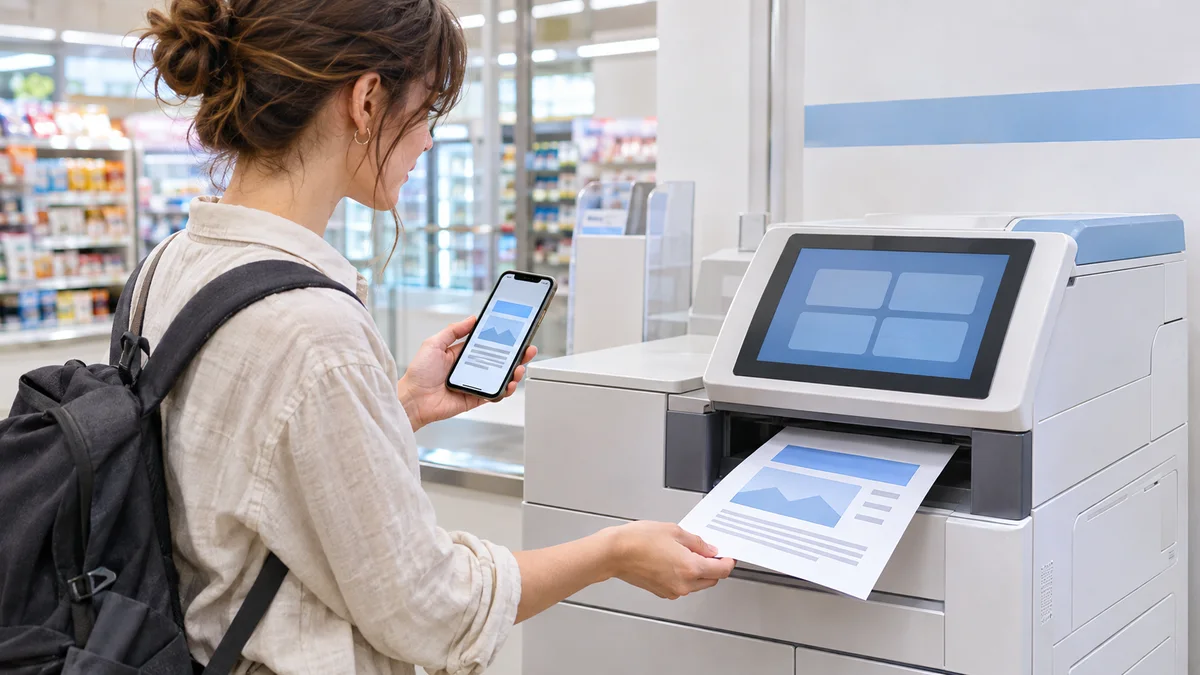
At the machine, choose the document or network-print menu that matches the route you prepared. Enter the reservation/user number or scan the displayed QR code only on the machine itself.
- 07
Inspect the preview. Confirm that all pages are present, upright and legible, then choose A4 unless the issuer requires another size. Check black-and-white versus color, one-sided versus two-sided, copies and the total charge.
- 08
Pay using only a method the machine displays as accepted, wait for the job to finish, and collect the printout, change, receipt and any inserted media before leaving.
- 09
Check names, dates, barcodes and QR codes under good light. If a code is blurred, cropped or too small, do not rely on it; print again from the original PDF with the correct scale or ask the issuer for an accepted digital alternative.
What to know
Choose the route before you stand at the machine
There are two different workflows that can look similar on the touch screen. A network-print workflow uploads the file first and gives you a reservation or user number. A direct workflow transfers the file at the store from supported media or a phone app. A code from one operator is not interchangeable with another chain's service.
Use online upload when your phone or laptop has a stable connection and you can verify the file before leaving. Use a supported USB drive or direct-phone workflow when you do not want to upload the document, but test the file and carry the required adapter or app before the deadline becomes urgent.
Do not start with a cropped screenshot when the issuer provides a PDF. Text, page margins and machine-readable codes are more likely to preserve their intended size in the original document. Keep the issuer's digital copy until the printed version has been checked.
What to know
7-Eleven: upload first, then use the reservation number or QR code
FUJIFILM Business Innovation operates netprint for 7-Eleven. Its current instructions say to register the file, receive an eight-character print reservation number, then choose netprint on the store machine and enter that number or present the QR code. Registration is free; payment is made when printing.
easy netprint does not require user registration and keeps a file until 23:59 on the day after registration. The registered netprint service requires a free account and currently offers a 30-day retention period. The screen shown after upload is authoritative: save the code and displayed deadline because an expired file cannot be recovered at the store.
As checked on November 28, 2026, network document printing at 7-Eleven costs ¥40 for black-and-white B5, A4, B4 or A3; ¥60 for color B5, A4 or B4; and ¥100 for color A3. Confirm the current on-screen total before printing because service terms and prices can change.
What to know
Lawson: network upload and direct PDF printing have different prices
Lawson's official multicopy page offers both Network Print and direct document/PDF print. Network Print accepts uploaded PDF, JPEG and Office files and requires free membership. Direct PDF print reads a compatible PDF from supported media or the supported phone workflow at the machine.
As checked on November 28, 2026, Lawson lists network document printing at ¥20 for black-and-white B5, A4, B4 or A3; ¥60 for color B5, A4 or B4; and ¥100 for color A3. The direct PDF option is cheaper: ¥10 for black-and-white B5, A4, B4 or A3; ¥50 for color B5, A4 or B4; and ¥80 for color A3.
Lawson lists PDF versions 1.3 through 1.7 for direct PDF printing and states that encrypted or password-protected PDFs are not supported. Compatibility can still fail even within a listed version, so carry the original file and leave time for a second route.
What to know
FamilyMart: distinguish uploaded network print from document print
FamilyMart's official pages list Famima Network Print, Network Print, PrintSmash and document print. For a traveler with an ordinary PDF, the important distinction is whether the file was uploaded in advance or will be transferred from supported media or a smartphone at the machine.
FamilyMart currently lists uploaded document printing through its network-print app at ¥20 for black-and-white B5, A4, B4 or A3; ¥60 for color B5, A4 or B4; and ¥100 for color A3. Its direct document print page lists ¥10 for black-and-white B5, A4, B4 or A3; ¥50 for color B5, A4 or B4; and ¥80 for color A3.
The chain lists PDF, DOCX, XLSX and PPTX for document print, but PDF is the most predictable travel format because office documents can reflow when fonts or page settings differ. FamilyMart also warns that a compact machine model supports only USB and PrintSmash, so do not assume every listed legacy media slot exists in every store.
What to know
Preview size, color and page count before payment
A4 is the common practical choice for confirmations and forms, but the issuing airline, railway, embassy, event or accommodation decides what it accepts. Printing a page does not make an invalid or expired booking valid, and a larger sheet does not repair a low-resolution code.
Use black and white when color is not required and the preview remains legible. Choose color when the issuer says color matters or when essential information becomes ambiguous in grayscale. Check whether a quoted price is per page, per side or per sheet on the machine before confirming duplex printing.
Zoom into every barcode, QR code, name, date and reference number in the preview. Avoid fit settings that crop the edges. After printing, compare the paper with the original PDF rather than assuming a completed machine job is a correct document.
What to know
Protect private documents at a shared machine
A reservation or user number can allow access to the registered file during its valid period. Do not post it publicly, send it to an unknown helper or leave it visible beside the machine. Use only the official service URL or app linked by the operator.
Minimize the personal data you upload. If a full passport copy is not required, do not print one merely for convenience. Check the service's privacy terms before uploading sensitive material, and use a direct-media route or a staffed business service when the risk is not acceptable for the document.
At the machine, keep the phone, code and preview under your control. Collect misprints as well as successful pages, take the USB drive, close the session when the machine offers that option, and do not discard personal documents in the store's ordinary bin.
What to know
Checked November 28, 2026 — the operator screen controls
This guide was checked on November 28, 2026 against the official netprint, Lawson and FamilyMart service pages. It does not claim that every branch has the same machine, media slots, maintenance status, language options, payment methods or operating access.
Prices in this guide are the operators' published ordinary document-print prices on the check date. Specialty paper, photo printing, content printing and other services use different charges. The total shown on the selected machine before payment is the controlling amount.
A printed travel document is useful only when the issuer accepts paper and the underlying reservation, ticket or form is current. Check the airline, railway, venue, government office or service provider's own rules before treating the printout as proof of entry or travel.
If that does not work
Use the fallback.
- The upload fails: export a fresh unencrypted PDF, shorten the filename, confirm the file-size and PDF-version limits on the official service, then try again on reliable Wi-Fi.
- The reservation number is rejected: confirm the chain, service and expiry. A 7-Eleven netprint code will not work in a Lawson or FamilyMart Network Print menu.
- The machine cannot read the USB drive: remove it safely, try the operator's supported phone app or upload route, or use another compatible branch; do not reformat a drive that contains your only copy.
- The PDF is password-protected: obtain or export an unencrypted print copy only if you are authorized to do so, then protect or delete that copy appropriately after use.
- The page is cropped: cancel before paying when possible, return to the preview, select the correct paper and fit setting, or create a standard A4 PDF from the original source.
- A barcode or QR code looks blurred: print from the original PDF at its intended scale, not from a screenshot. If it remains unclear, contact the issuer for a replacement or an accepted digital option.
- The machine or service is under maintenance: use another nearby compatible store, a hotel business center, a staffed print shop or the issuer's digital-entry method if officially accepted.
- You have no data connection: use a previously saved USB copy or the direct transfer method you prepared. Store Wi-Fi should not be your only plan for a deadline-critical document.
- You cannot determine whether paper is required: ask the issuer, not the convenience-store staff. Store staff cannot validate an airline, government, rail or event document.
Before you need it
Save this offline.
- Original unencrypted PDF saved on the phone
- Backup PDF on a supported USB drive when practical
- Reservation or user number and its expiry
- Official service URL and app name
- Required paper size and color instruction from the issuer
- Expected page count
- Enough yen for a reprint
- Issuer contact or digital-entry fallback
- Nearest alternative compatible store
- A secure folder or envelope for the printout
Frequently asked questions
Print Travel Documents in Japan: Convenience-Store Multicopy Guide FAQ
Can I print a PDF from my phone at a Japanese convenience store?
Yes, at supported machines. Upload it to the chain's official network-print service and use the issued number or QR code, or use the supported direct-phone app. Prepare the app or upload before the document becomes urgent.
Do I need a Japanese phone number?
Not for the ordinary easy netprint browser workflow described by 7-Eleven's operator. Other apps or account-based services can have their own registration requirements, so check the official service before relying on it.
How much does an A4 travel document cost to print?
On November 28, 2026, 7-Eleven netprint listed ¥40 black-and-white or ¥60 color for A4. Lawson and FamilyMart listed direct PDF/document print at ¥10 black-and-white or ¥50 color for A4, while their uploaded network-print prices were higher. Confirm the machine total before paying.
Can I print a password-protected PDF?
Lawson expressly states that encrypted or password-protected PDFs are unsupported for direct PDF print. Export an authorized unencrypted print copy or request one from the issuer, then protect the copy after use.
Can I print Word, Excel or PowerPoint files?
Lawson's Network Print and FamilyMart's document services list Office formats, but a PDF is usually safer for preserving fonts and page layout. 7-Eleven's supported-file rules should be checked on netprint before upload.
How long does a 7-Eleven print reservation last?
easy netprint currently keeps the file until 23:59 on the day after registration. Registered netprint currently offers 30-day storage. The exact deadline shown after your upload controls.
Can convenience-store staff print or validate the file for me?
Do not assume so. The machine is self-service, and store staff cannot decide whether an airline, railway, government office or venue will accept the document.
Is a printed screenshot of a QR code reliable?
It may scan, but it is less predictable than the original issuer PDF or accepted digital code. Screenshots can be cropped, resized or compressed. Use the original and test legibility before relying on the paper.
Should I print my passport or payment-card details?
Only print personal data that the receiving authority actually requires. Use an official service, keep the reservation code private, collect every page and misprint, and do not leave sensitive paper or media behind.
What if the nearest store has no compatible machine?
Use the chain's store search, try another supported branch, or use a hotel business center or staffed print shop. For deadline-critical travel, also confirm whether the issuer accepts a digital document.
Primary evidence
Official sources used
Open these pages again before travel. External links lead to the responsible Japanese authority or transport organization.